Loot Pop-up & Drop Tracker
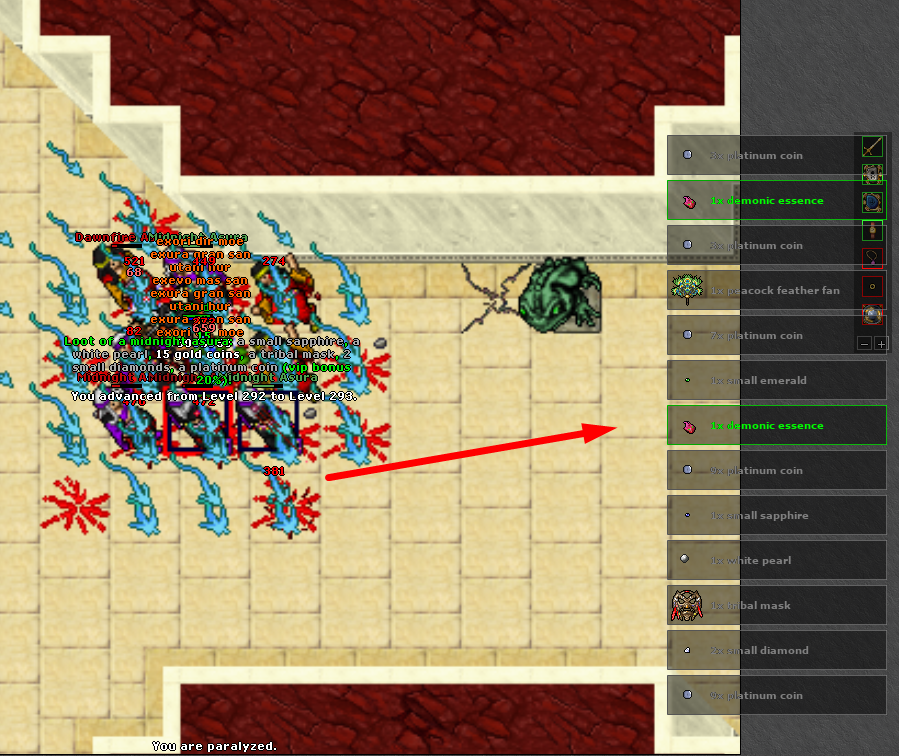
System that displays loot received directly on the screen after configuring the Drop Tracker.
How to add items to Drop Tracker
There are two ways to add items: automatically by value or manually by Cyclopedia.
1 Automatically add by value
Set a minimum gold value. All items with equal or greater value will be automatically added to Drop Tracker.
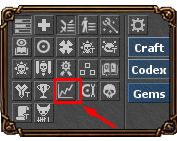
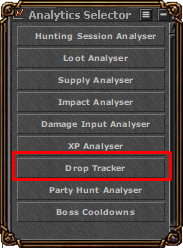
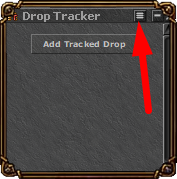
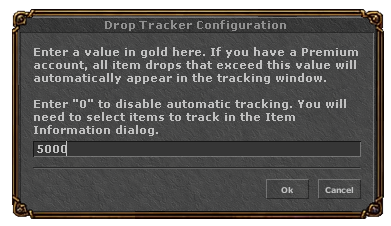
Note: Use the value 0 to disable automatic addition and choose items manually.
2 Add manually by Cyclopedia
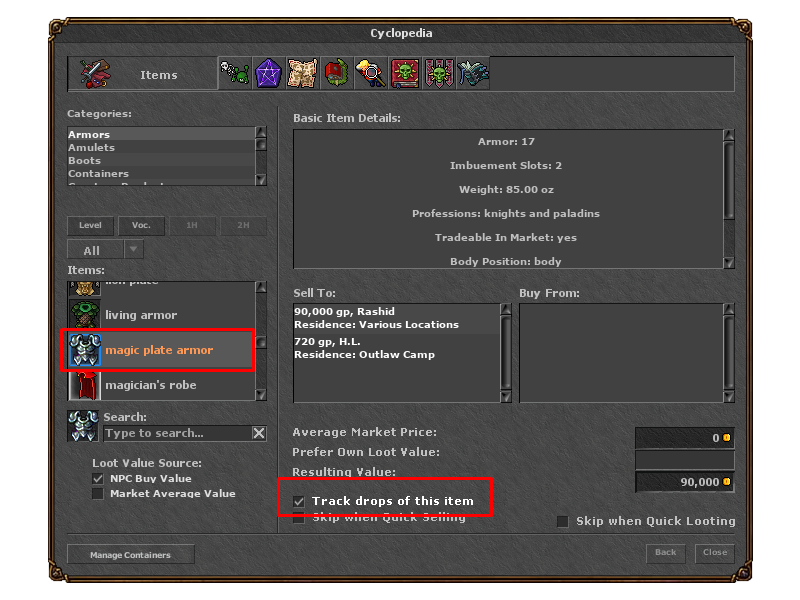
Open Cyclopedia, access the items section, choose the desired item and select the option “Track drops of this item”.
How it works
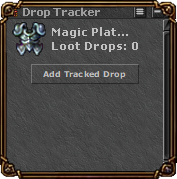
When configuring an item in Drop Tracker, a pop-up with the quantity and icon appears in the bottom right corner when the item is dropped. The minimum value can be set in Analytics → Drop Tracker → menu in the upper right corner.
Benefits
Improves visualization and control of items obtained during hunts.
Attention: Minimum requirements
None. The feature is available in the customized client.
Tip: Strategy
Set a minimum value to avoid pop-ups for common items in high-level hunts.